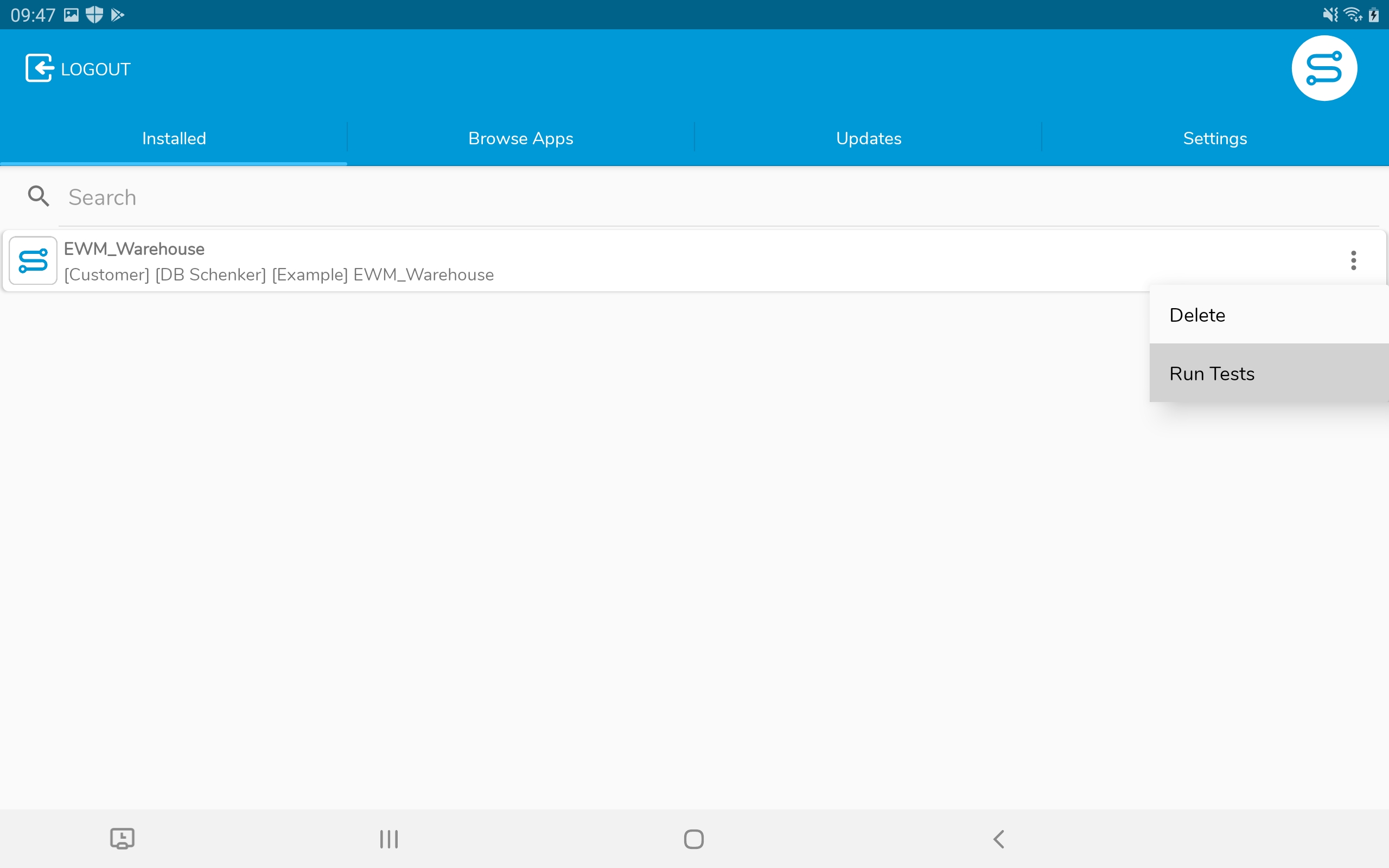
On application deployment, the app generator provides a basic self-test for the business application. The automated tests are based on the SAP OPA5 test framework.
The URL of the test page is relative to the deployed business application used under the subpath /test/integration/opaTests.qunit.html and can be opened with a browser.
Simplifier provides two approaches for creating automated tests:
- AI-Powered Test Generation – Automatically generate OPA5 tests by recording your interactions with the application
- Manual Test Creation – Write OPA5 test code manually for complete control
Test Generation with our AI QA Engineer
Simplifier offers an AI QA Engineer Agent to automatically generate OPA5 tests. Instead of writing test code manually, you can record your interactions with the application, and the AI Agent will automatically create the test Journey and Page Objects for you.
This feature requires a subscription to our Agentic AI based on the Simplifier Value Flatrate. Each customer receives 10 free test generations. After that, an active Agentic AI subscription is required. Subscriptions can be managed in the Makers Club.
How It Works
When you interact with your application during a recording session, Simplifier logs all your user actions in the background (such as clicks, navigation, data entry, etc.). These logs are then analyzed by an AI language model (LLM), which automatically generates the corresponding OPA5 test code, including test Journeys and Page Objects that replicate your recorded interactions. Afterwards, the recorded logs are discarded.
Prerequisites
- Your application must be deployed before you can start recording
- For best results, ensure that screen items in your application have descriptive IDs configured
Creating AI-Generated Tests
- Deploy Your Application: Make sure your application is deployed before starting the test creation process.
- Start Test Creation: In the App Editor, switch to the Tests tab and click the button to add a new Journey using AI.
- Enter Test Description: A dialog opens where you can enter a brief description of the use case you want to test.
- Start Recording: Click “Start Recording” to begin. A new browser tab opens with your application along with a recording overlay.
- Use the Recording Overlay: The overlay provides controls for managing your recording session. The overlay can be minimized, moved, and resized.
- Start/Finish Recording: Begin recording a journey and finish it when done. You can record multiple journeys in sequence without closing the tab.
- Journey Description: Optionally, enter a description for each journey before finishing the recording.
- Cancel: Discard the current recording if needed.
-
- Add Assertion Context: Select a UI element and add a comment describing what the AI should verify (e.g., “This table should only show rows with Vendor A”). The AI uses this to generate targeted assertions.
- Finish and Close: When you have recorded all journeys, select “Finish and Close” in the overlay. The tab closes and the AI begins generating the test code.
- AI Generation: The AI automatically analyzes the recorded interactions and generates:
- OPA5 Journeys with test steps (one per recorded journey, in recording order)
- Page Objects with actions and assertions
- The AI considers existing tests in your app to re-use Page Objects where possible and avoid duplication
- Review and Execute: The generated Journeys open automatically in the Test Editor. Important: Review the generated tests carefully, as manual code adaptations are likely needed to ensure the tests work correctly for your specific use case. You can execute the test immediately without needing to deploy again.
Screen Item ID Propagation
When you rename a screen or screen item ID in the App Editor, the change is automatically propagated to all OPA5 tests that reference that ID. This keeps your tests in sync with your application without manual code updates.
Current Limitations
The following limitations apply:
Recording behavior:
- Recording only works if the application was deployed before starting the recording
What gets captured:
- User actions are logged during recording. Additionally, model changes (data changes in the application) are observed and included in the context for generating assertions.
- ✓ Recorded: Button clicks, text input, dropdown selections, navigation between screens, model/data changes
- ✗ Not recorded: Auto-populated lists, toast notifications, background data loads (unless they result in model changes)
- Tip: Use the “Add Assertion Context” feature in the overlay to guide the AI in generating specific assertions for dynamic content
Code generation:
- Generated tests can only be created with AI, not edited with AI
Subscription:
- Each customer receives 10 free test generations. After that, an active subscription is required.
- If the free limit of test generations is reached during a recording session (e.g., due to multiple users creating tests in parallel), a dialog will inform you and link to the Makers Club to subscribe.
- Executing the generated tests is free unlimited
Tips for Best Results
- Keep your use cases focused and straightforward for the recording session
- Record multiple related journeys in one session to help the AI understand the full test context
- Use the assertion context feature to tell the AI exactly what to verify — this significantly improves test quality
- Perform actions deliberately and wait for the application to respond before proceeding to the next step
- Use descriptive IDs for UI elements to help the AI generate more meaningful test code
- Review the generated tests and refine them manually as needed
Manual Test Creation
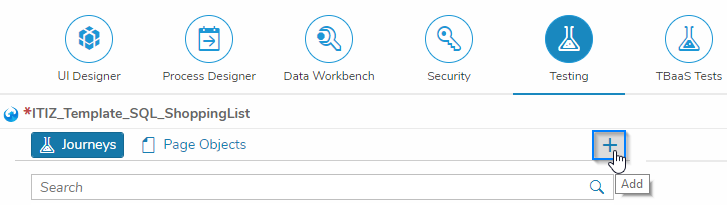
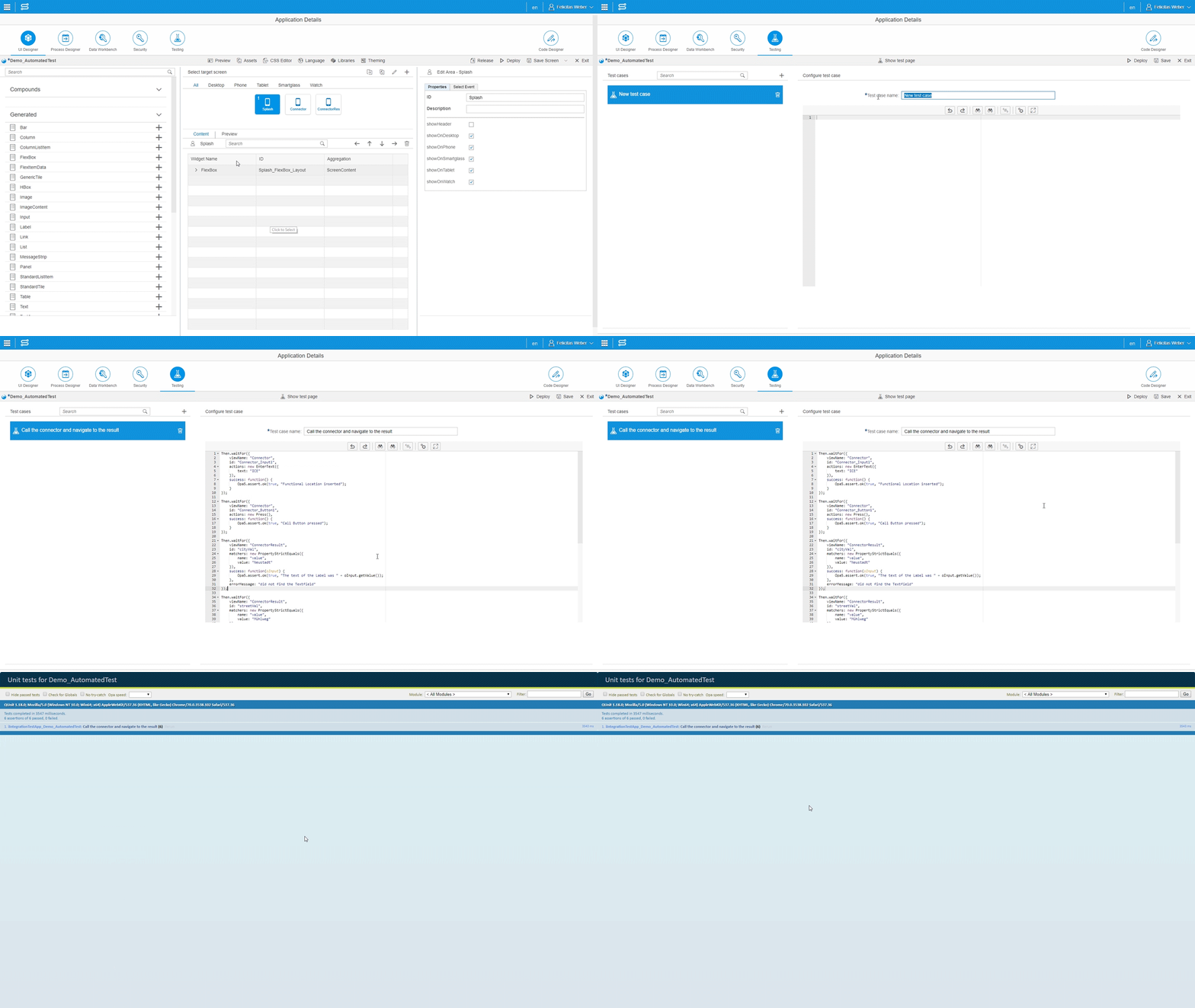
As an admin, you can manually create automated tests. Make sure you are already in the UI Designer for the testing application. Switch to the tab Testing.
To create a new test case, click on the plus icon.
Select the type in the opened pop-up and enter a test case name.
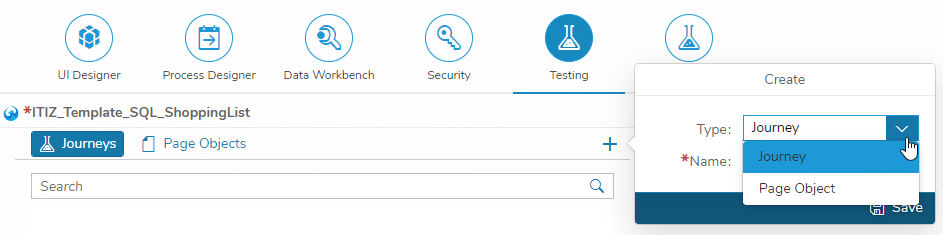
Click on Save.
Select the new Journey or Page Object on the left and add the testing code.
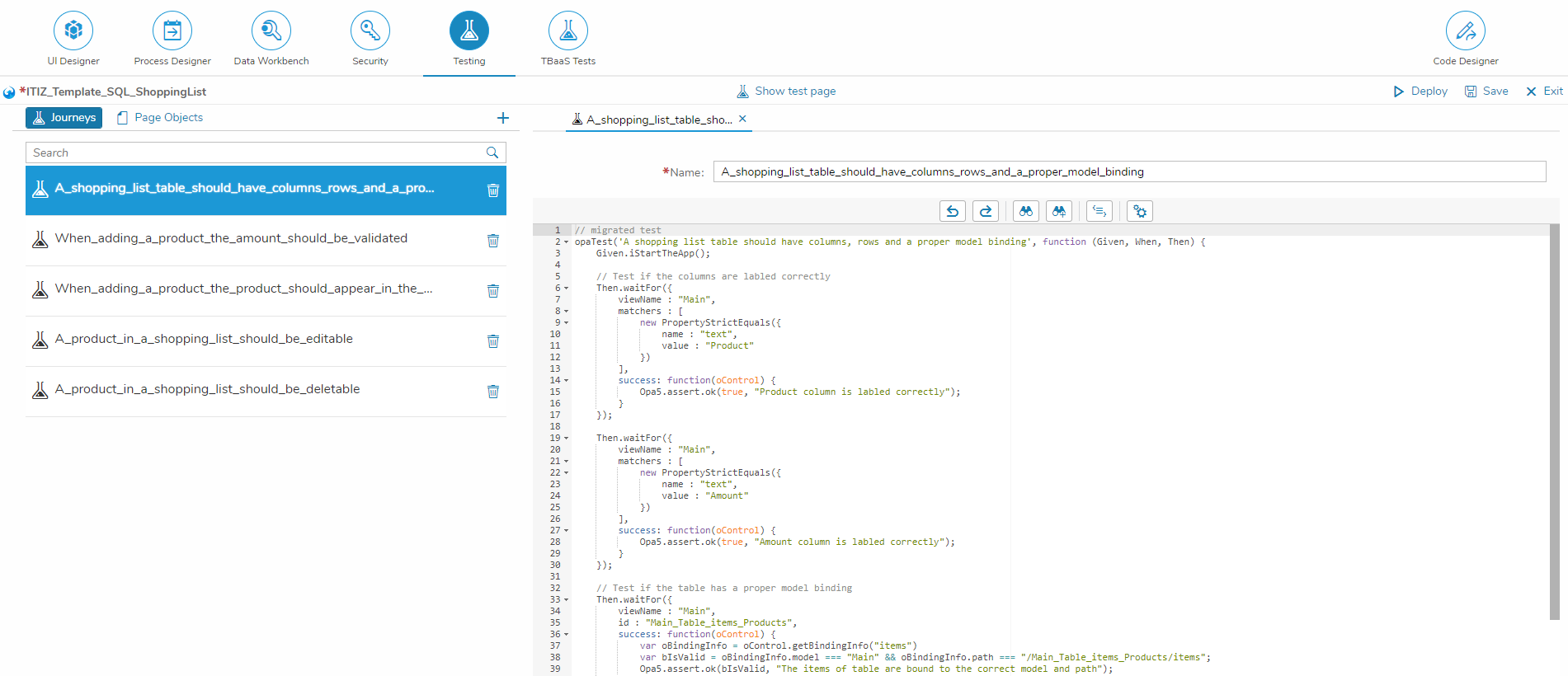
Deploy the Journeys or Page Objects and click on Show test page.
Using the Simplifier Android Mobile Client the business app can be tested on a mobile device after downloading, too. Through the context menu of the downloaded app you can start the automated tests.