1. Create New Authentication
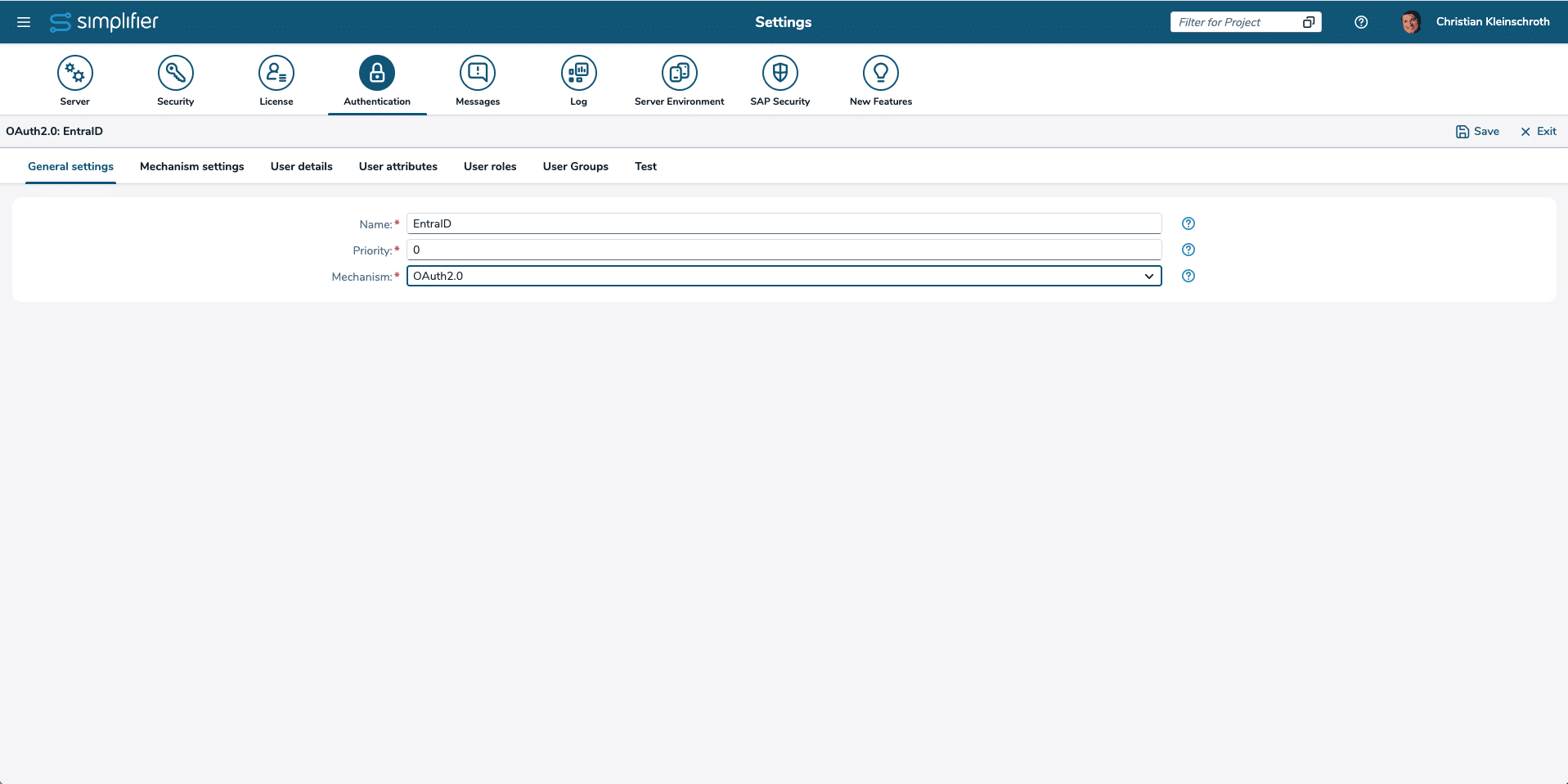
Within Simplifier – Go to the Server Settings -> Authentication and create an new Authentication
2. Switch to Mechanism Settings
Switch to Mechanism Settings and copy the Redirect URL for preparing the Entra ID Registration

3. Register Simplifier as an Application within Entra ID
- Sign in to the Microsoft Azure portal using an account with administrator permissions. You must use an account in the same Microsoft 365 subscription (tenant) as you intend to register an app with. On the Home page of the portal under Azure services, select Microsoft Entra ID.
- In the left navigation pane, select App registrations and then select + New registration on the App registrations page.
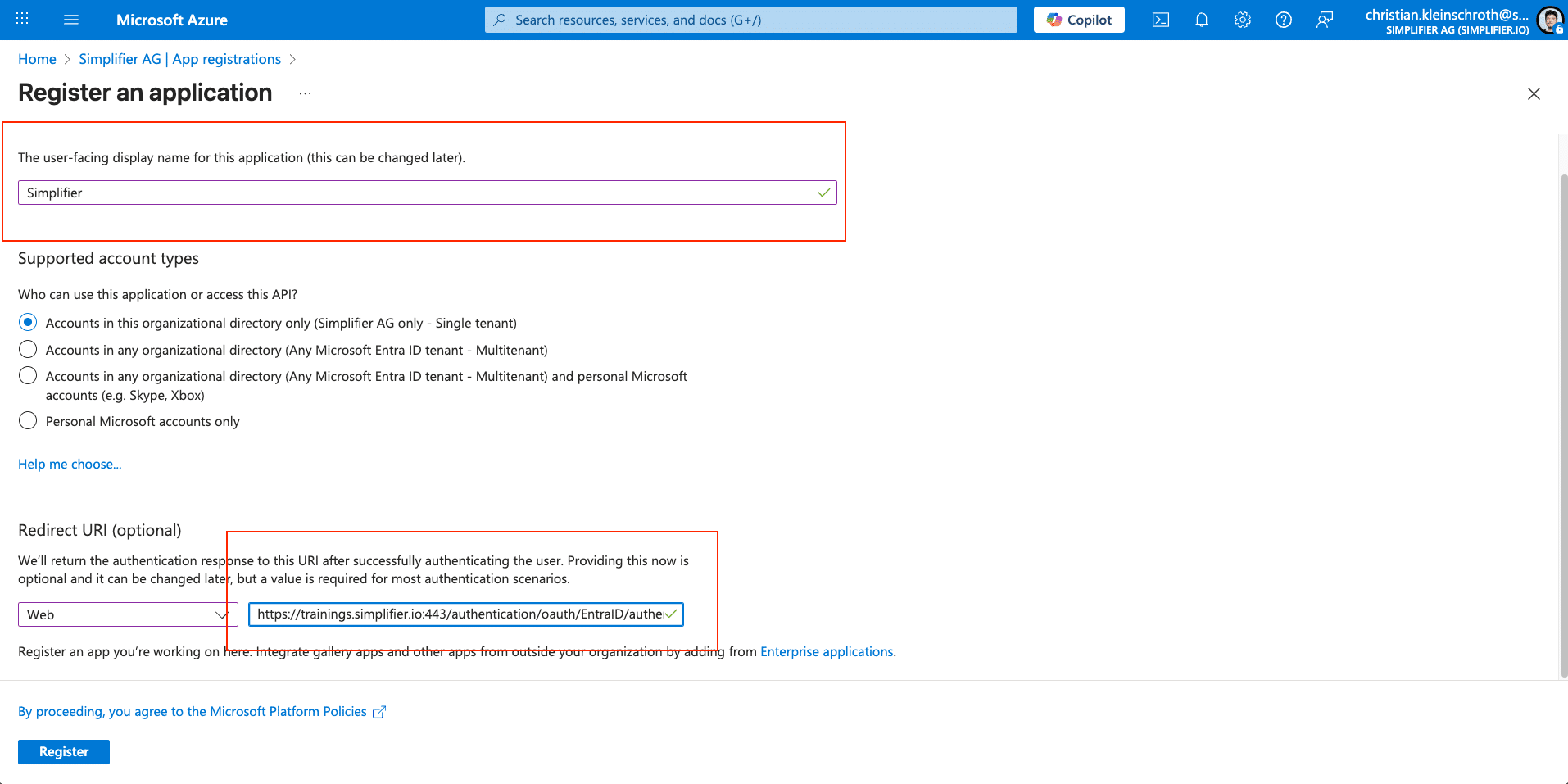
- On the App registrations page, enter your application’s registration information as described in the table.
- Enter a meaningful application name that is displayed to users.
- Choose Web for the Redirect Option and copy the Redirect URL from the Simplifier Settings, see Step 2
- Finish the Creation with click on Register
4. Configure the Client ID
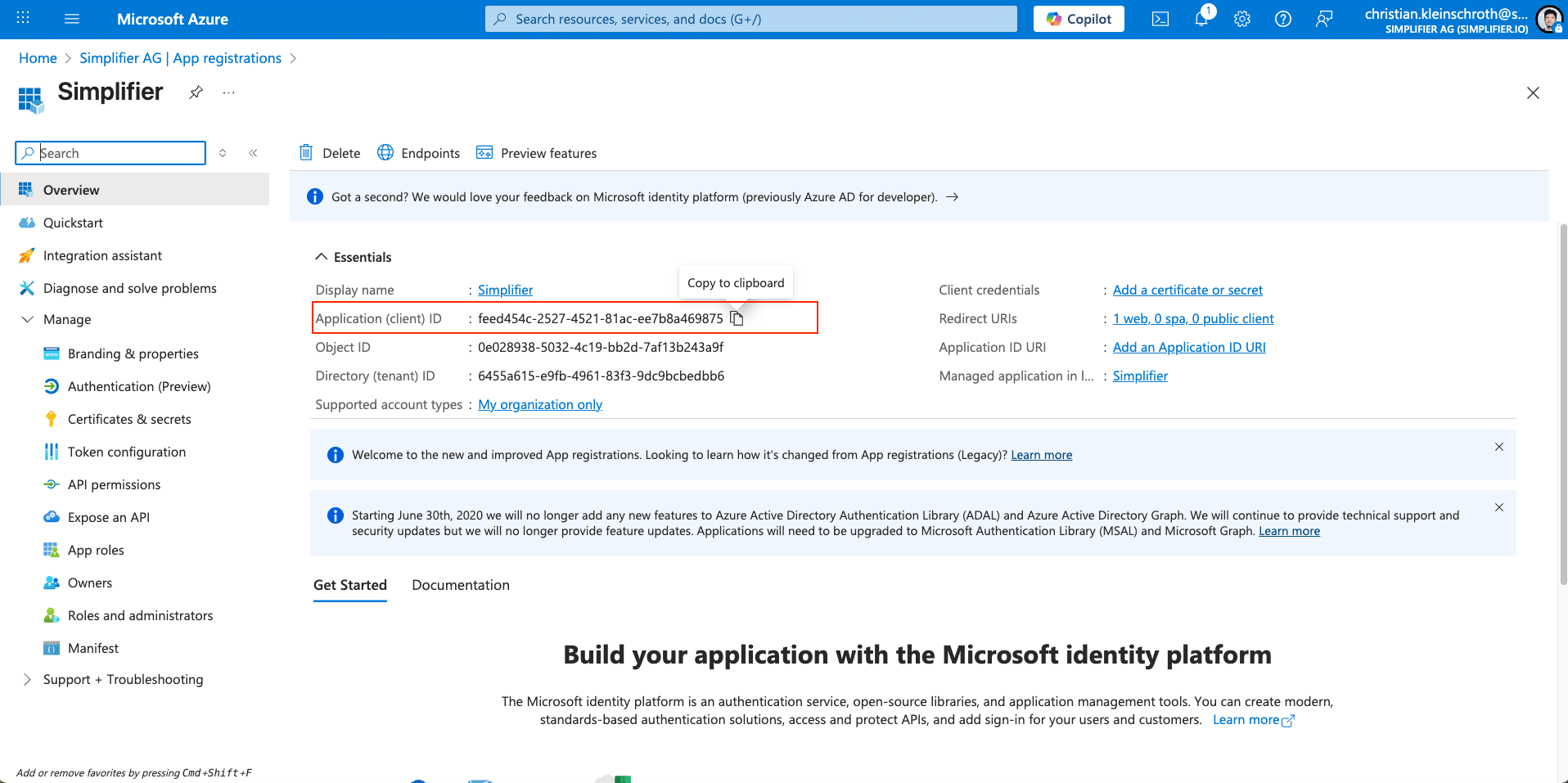
Copy the Client ID (Application ID) from the created Entra Application into the Simplifier Mechanism Settings Field Client ID
5. Create a Client Secret
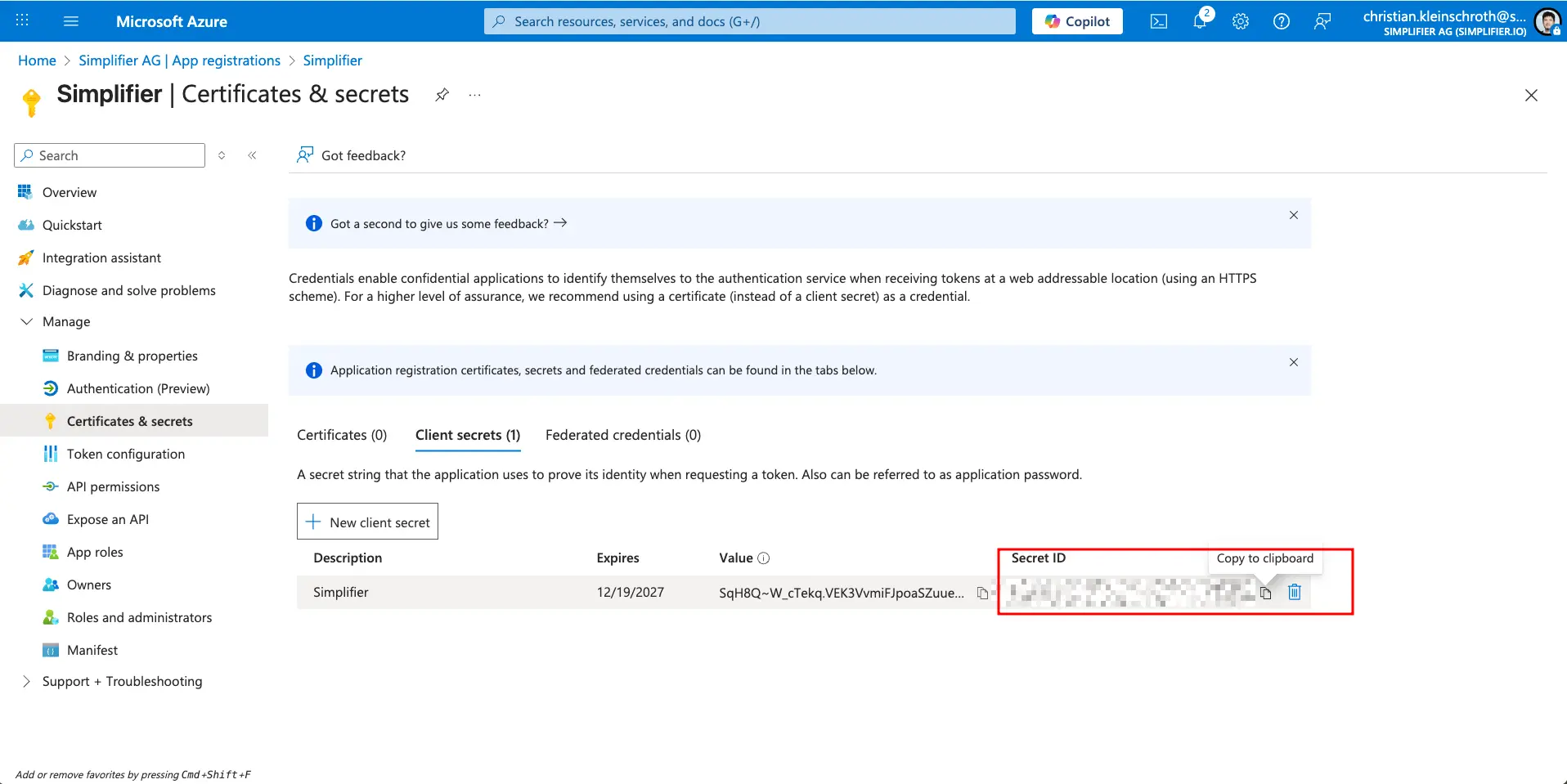
A Client Secret is like a Password for Entra ID Access for Simplifier. Client Secrets have an Expiration Date and must be exchanged within a certain time frame.
Add a client secret by selecting the Certificates & secrets link in the left navigation pane
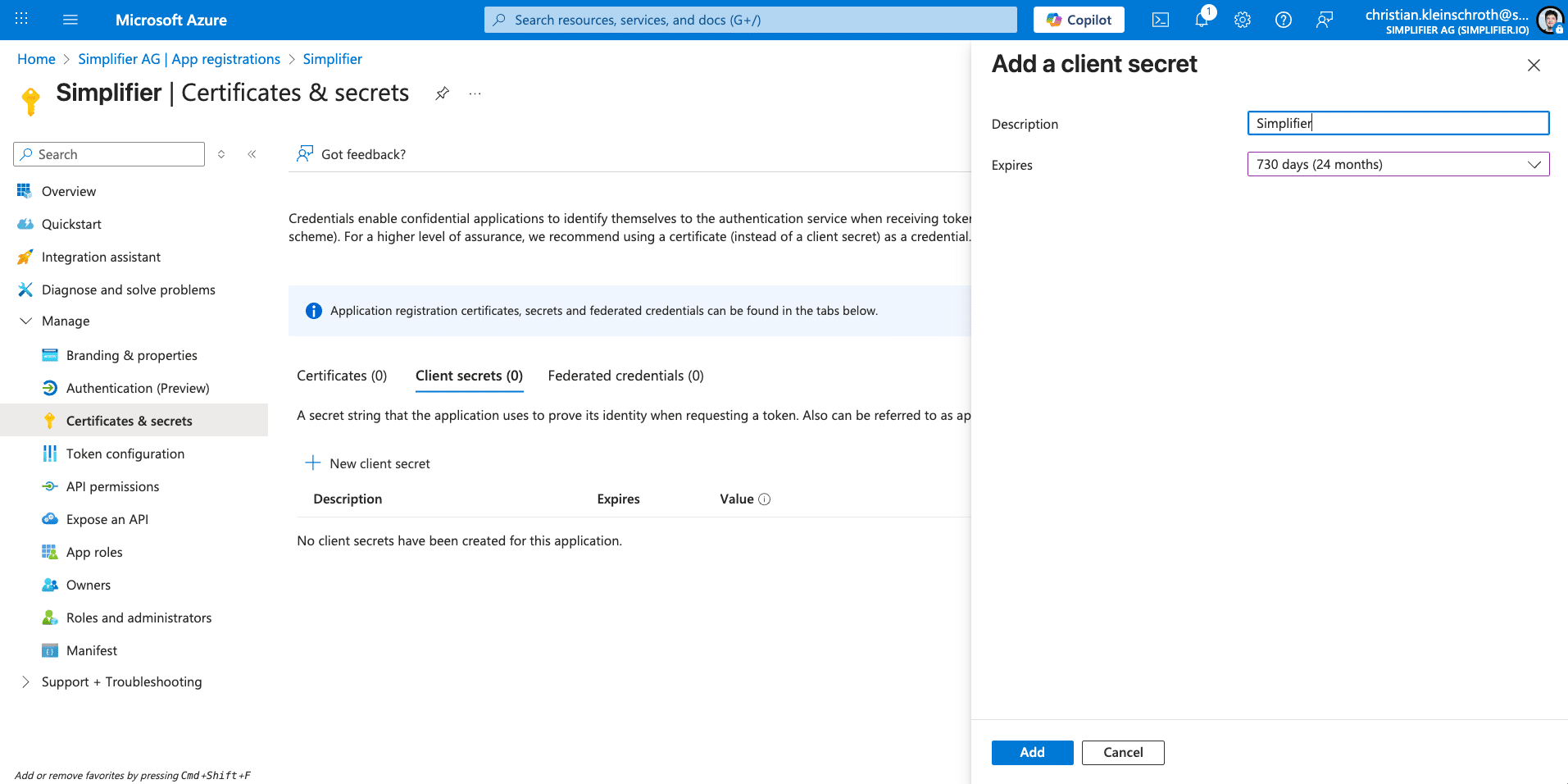
Copy the Client Secret under the Mechanism Settings in the Field Client Secret
6. Complete the Mechanism settings
Use the following Information to complete the Simplifier Mechanism Setttings
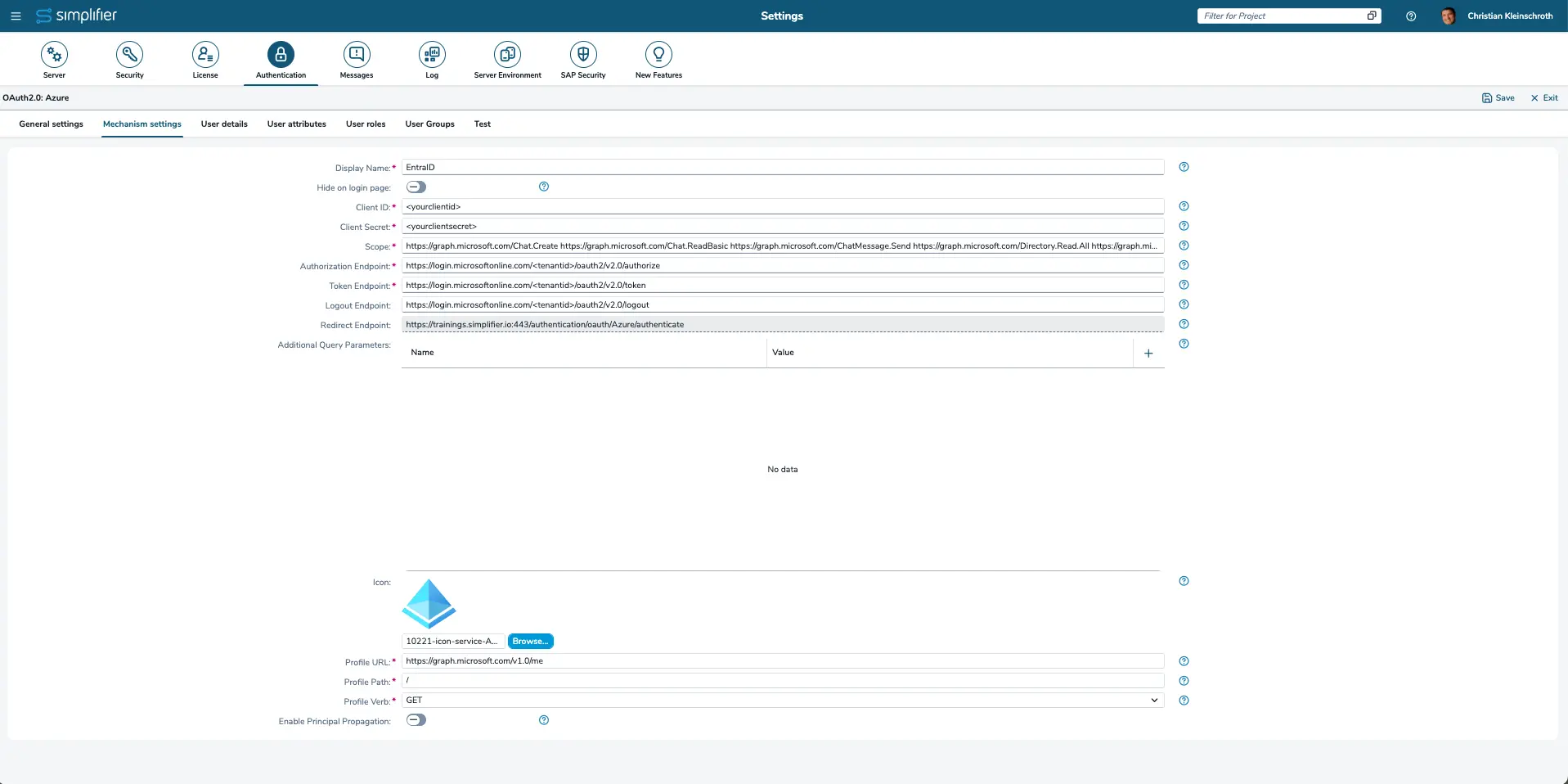
| Display Name | The display name is shown on the login button. |
| Client ID | The client ID identifies the application and is defined by the configuration on the OAuth server. |
| Client Secret | The client secret authenticates the application and is defined by the configuration on the OAuth server. |
| Scope | The scope determines which rights are gained with the access token. E.g. ‘profile’, ’email’, etc. for gaining rights to access the user profile/user email.
For full EntraID Access use the following example scopes: https://graph.microsoft.com/email |
| Authorization Endpoint | The authorization endpoint is the URL to which an authorization request is sent.
Default should be https://login.microsoftonline.com/<tenantid>/oauth2/v2.0/authorize |
| Token Endpoint | The token endpoint is the URL to which an access token request is sent.
Default Value: https://login.microsoftonline.com/<tenantid>/oauth2/v2.0/token |
| Logout Endpoint | Logout endpoint is a URL that can be provided for external IDMs supporting a Logout Mechanism from Client to IDM
Default Value: https://login.microsoftonline.com/<tenantid>/oauth2/v2.0/logout |
| Redirect Endpoint | The redirect endpoint is the URL to which the browser is directed after successful authorization. This URL needs to be entered in the OAuth server configuration. |
| Additional Query Parameters | You can add additional query parameters, such as name and value. |
| Icon | The icon will be displayed on the login mask above the display name. |
| Profile URL | The URL to which a user profile request is sent.
Default Value https://graph.microsoft.com/v1.0/me |
| Profile Path | The path that points to the user profile. E.g. ‘/’, ‘profile’, ‘profiles[0]’ etc. |
| Profile Verb | GET, POST, PUT |

8. Map the User Detail
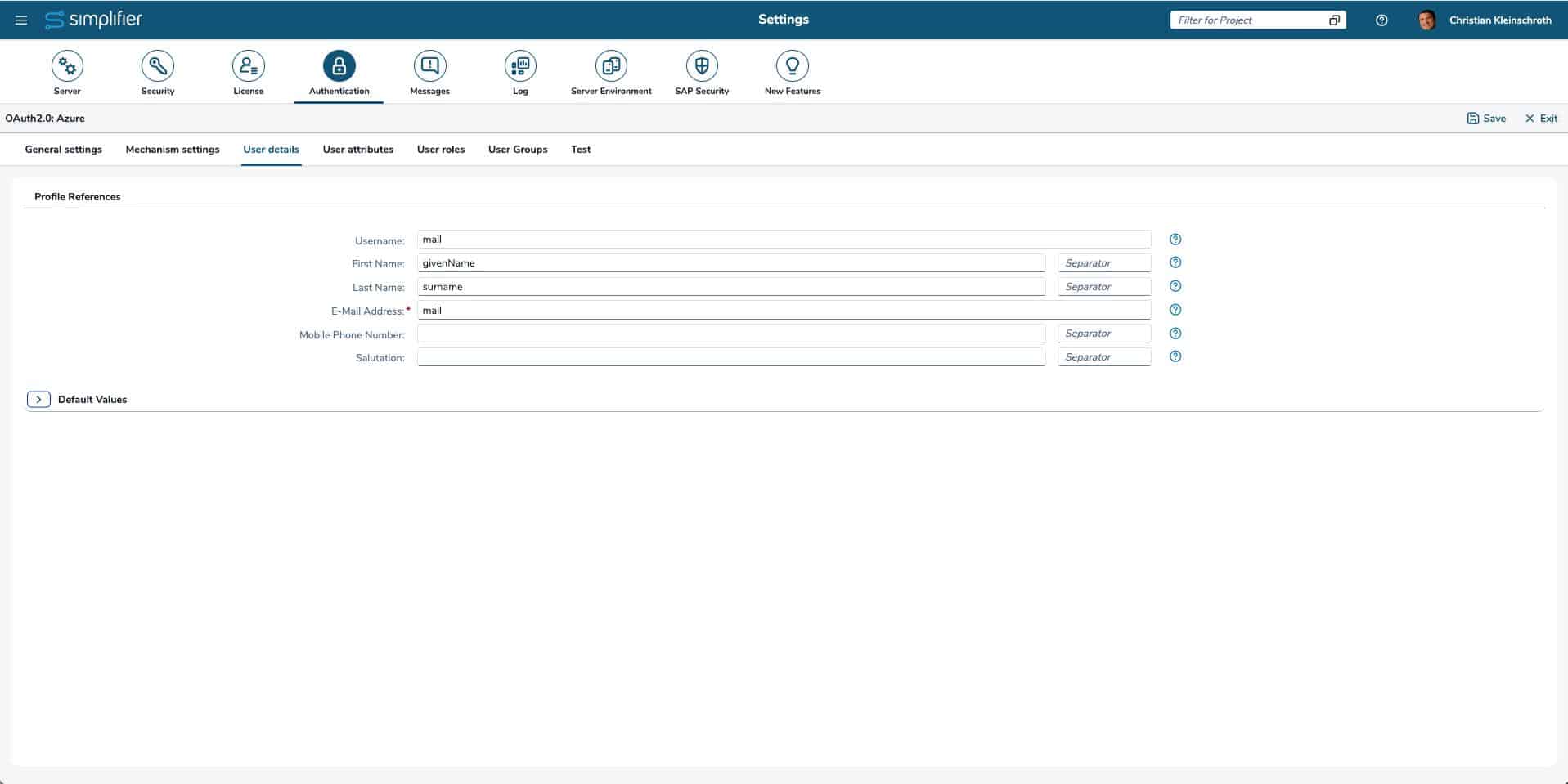
| First Name | The path which points to the entry of the user profile containing the first name. E.g. ‘givenName’, ‘person/firstName’, etc. |
| Last Name | The path which points to the entry of the user profile containing the last name. E.g. ‘surname’, ‘person/lastName’, etc. |
| E-Mail Address | The path which points to the entry of the user profile containing the email address. E.g. ‘mail’, ’emails[0]/value’, etc. |
| Mobile Phone Number | The path which points to the entry of the user profile containing the mobile phone number. E.g. ‘phone’, ‘phones/mobile’, etc. |
9. Test the Authentication
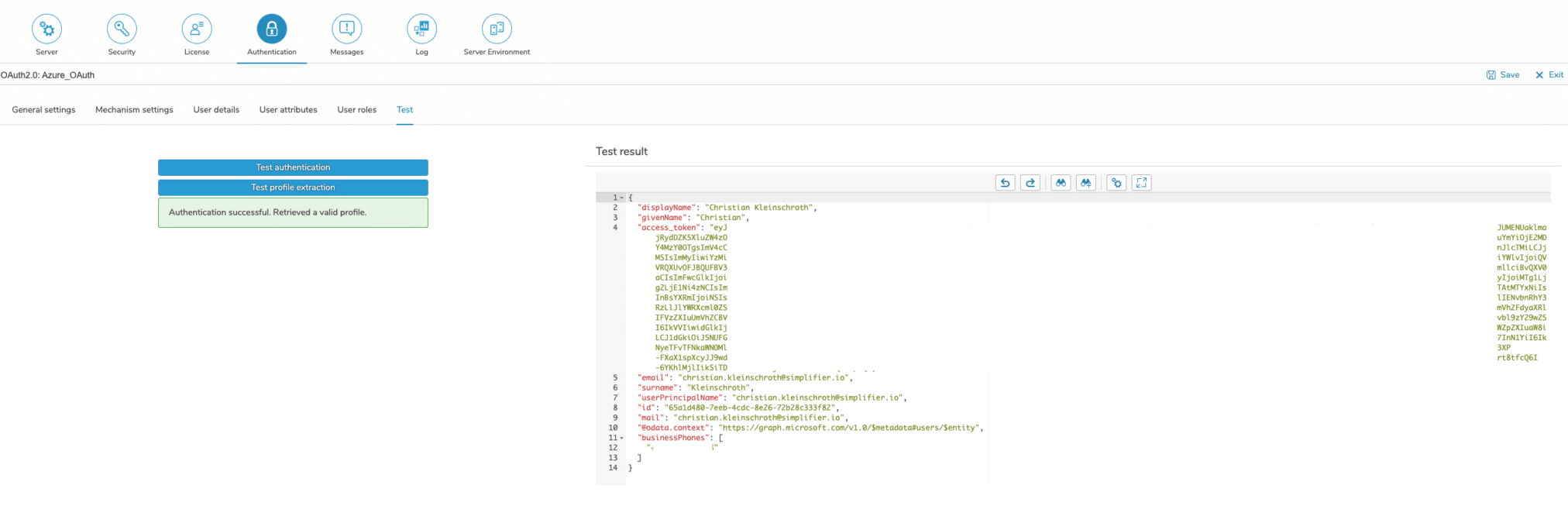
The settings for OAuth 2.0 can be tested within the configuration. Since the test procedure includes several steps, it is necessary to save the settings first.
The assignment of an access token can be tested by pressing the ‘Test authentication’ button, while pressing the ‘Test profile extraction’ button initiates the complete OAuth 2.0 procedure, which assigns an access token and also collects a user profile with the required data.
10. Add User to Entra ID Application
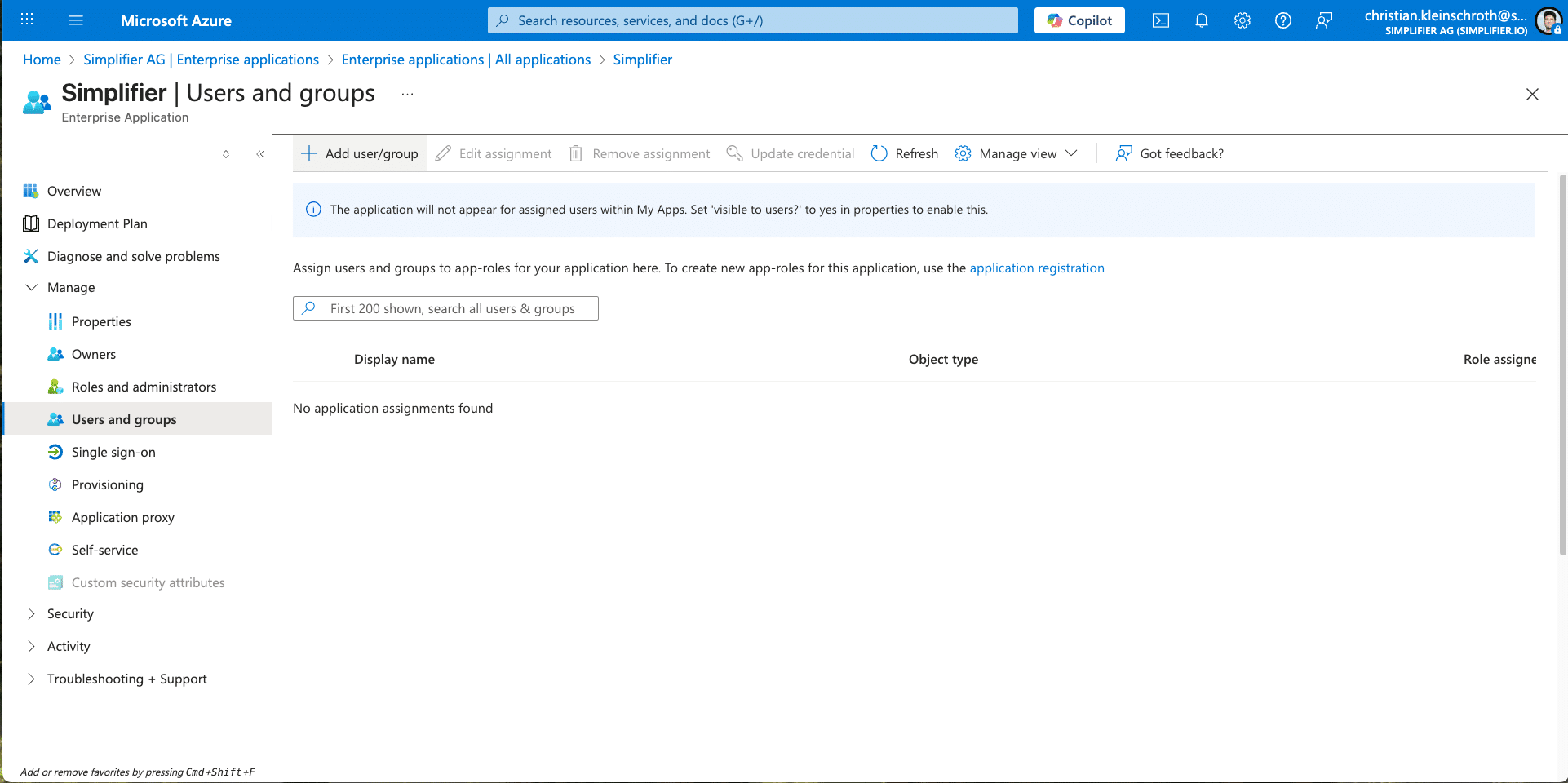
To finalize the step, you have to permit your User to your created Application within Entra ID.
Go to Enterprise Application, search for Simplifier Application and add User or User Groups.
Setup Single-Sign-On for Connector / Integration
If you have successfully authenticated against you external identity provider, you can setup your connector endpoints for passing through the oAuth Token.