Manage Business Object Functions
The logic of a business object is implemented via script functions. Each business object can hold as many functions as needed. Click on the ‘Edit functions’ icon.

You are forwarded to the overview of the business object’s functions. There, you can access the function details, edit a function, test it, copy it, or delete it.

To add a new function, click on the ‘+’.
Creating a function involves writing a method via JavaScript in the Code Editor and setting input and output parameters. In the script editor, you can code logic that can be called in the Process Designer.
Code Editor
The content corresponds to the inner body of a JavaScript function. In other words, your main code block must not be wrapped in a separate function definition but rests on the top-level context. It’s nevertheless possible to define sub-functions on top of your main code block.
It’s best practice to wrap your main code block in a try-catch block to handle possible errors.
Let’s have a typical ‘Hello World’ example:
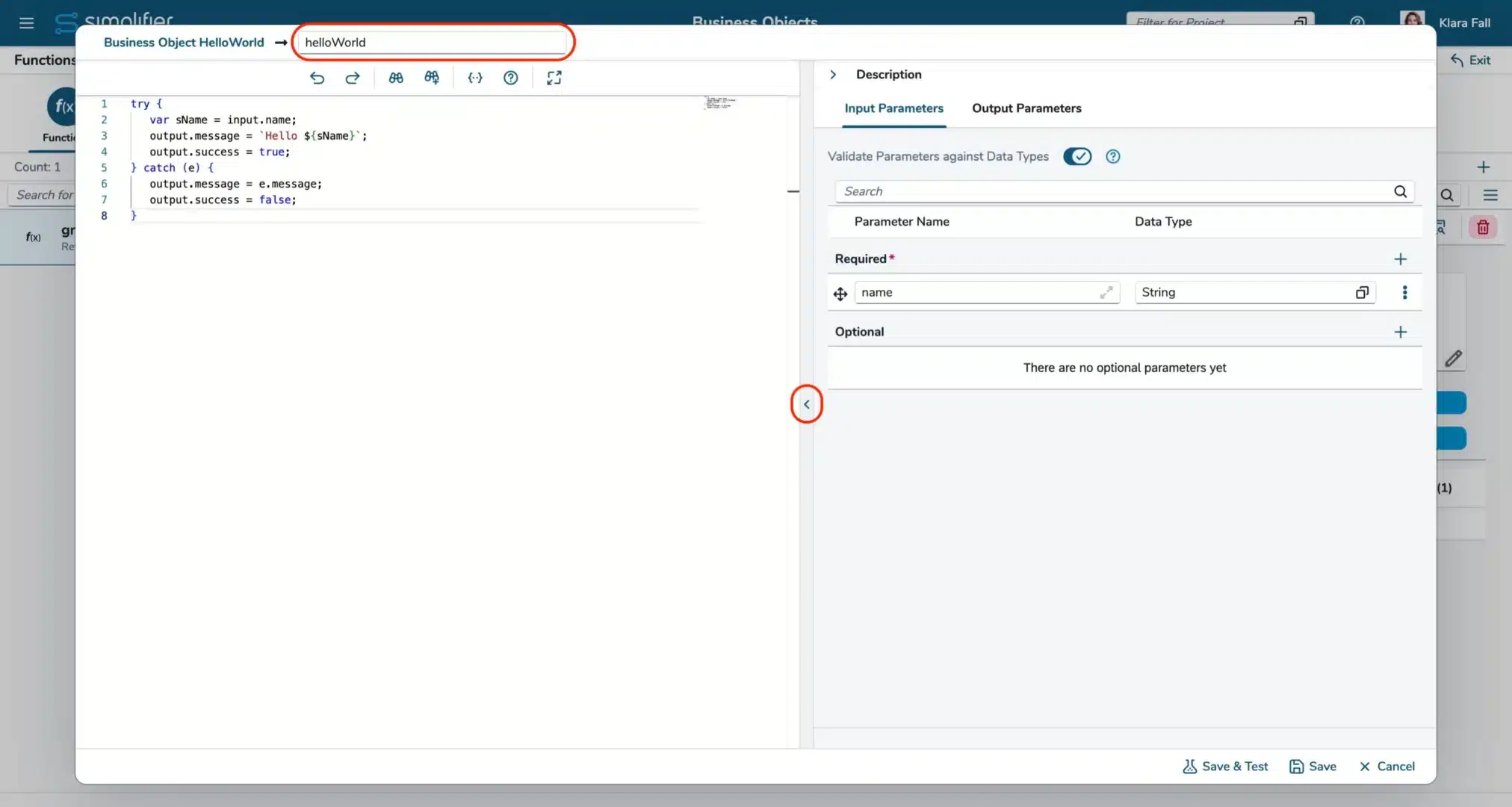
Set the function name at the top of the editor.
In the toolbar above, you have several possibilities:
- Undo (Ctrl-z)
- Redo (Ctrl+y)
- Search (Ctrl+f)
- Search and replace
- Format code
- Command Palette
- Version comparison
- Fullscreen
This example reads a name that is provided to the business object as an input parameter, concatenates it into a greeting message, and writes the result to the output.
Take a look at the try-catch block surrounding the main code section:
If no error occurs, the upper part of the code inside the “try”-section will execute and return the greeting message and output.success = true. However, the function will jump into the “catch” section if any error occurs. In that case, set output.success = false is set, and the error message is assigned to parameter output.error.
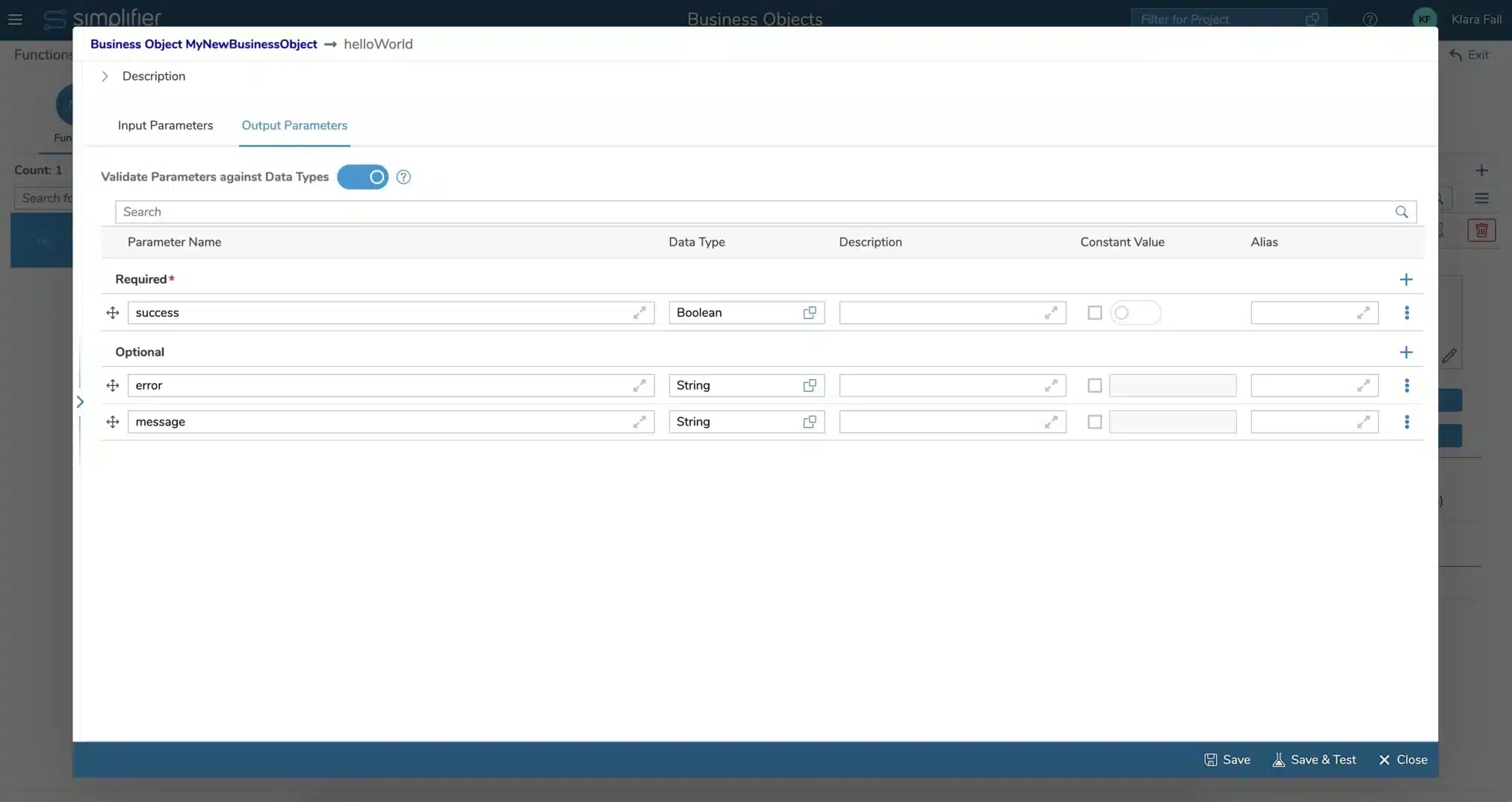
To use the script function correctly, you have to add the same input and output parameters you used in the payload. Those parameters will be shown in the mapping dialogs in the Process Designer. Please note the corresponding handling of in- and output through the (JSON) objects “input” and “output”. Both of them may carry arbitrary attributes.
In this example, the object “input” carries the attribute:
- input.name to read the inserted name.
The “output” object carries the attributes:
- output.message to send a greeting message.
- output.success (true/false) to indicate whether the script template executed successfully.
- output.error to hold the root cause of an error in case of failure.
You can maximize the parameter view by clicking the left arrow button.
Auto completion / Syntax highlighting
Syntax highlighting and JavaScript code completion are based on ECMAScript 2022.
The following APIs are available for code completion:
- Simplifier API (Simplifier.)
- this context
- Input- and output parameters (input., output., fnSuccess(), fnError())
- Integrated libraries in server-side business objects (Lodash, moment, etc.)
- Additional namespace in client-side business objects (sap., document., window.)
Input and output parameters
You can validate the input and output parameters in the backend. It validates:
- Base type against type security
- Domain type against security and restrictions
- Structures against type security and underlying property types
- Collections against type security and the underlying types/property categories
If the validation is not successful, the client is notified of all failed validations, and the information is written to both the business object log and the system log simultaneously.
For every new business object, this flag is set by default.
Saving and Testing
Both actions ‘Save’ (Ctrl + s) and ‘Save & Test’ save your function and create a version if the code has been changed.